Latest Tips from MakeUseOf.com |  |

- Six Steps To Help You Fix Common DVD Drive Errors
- Cool Websites and Tools [November 16]
- How to Speed Up Your Computer With Just One Double-Click [Windows]
- Set Up A Voicemail System For Your Blog With VoiceMeMe
- 3 Inspiring Virtual Libraries for Avid Readers & Book Lovers
- 3 Free Cross-Platform Multishooter Games That Resemble Worms 2
- Find What Happens To Your Email and Social Networking Accounts When You Die?
- Top 3 Sites To Help You Become A Linux Command Line Master
- 5 Simple Ways To Lighten Dark Underexposed Photos In Photoshop
| Six Steps To Help You Fix Common DVD Drive Errors Posted: 17 Nov 2009 04:01 AM PST
These tips to fix dvd drive errors will also work for a CD or CDR drive. The first thing we need to do is determine where the issue is. It can either be a physical issue like power not getting to the drive or a IDE / SATA cable has come unplugged. It could be a Windows operating system problem that is preventing your drive from showing up or reading disks and finally it could be that disk is garbage. You might have a scratched up dirty disk and it is unreadable by your player. Let's see how we can identify and resolve these issues. I see issues with drives on a daily basis in my day job as well as hundreds of questions coming in at Ask The Admin. Let me share some of my troubleshooting tips with you. Maybe it will stop the questions – but I doubt it! These instructions can be used for both internal and external drives but some of the fundamentals might be a little different. Like the power cord versus the internal power connector, the USB interface or a IDE connector. But use your intuition to guide you. Some of these problems are common both to the external and internal drive and can be fixed with a little application or by following the tutorials that come with these drives.
First things first, we should check the power and connections to your computer.External drives can be checked while the system is powered on but internal drives will need you to shutdown the system and remove the power cord before beginning. If the cables are connected but loose pull them free and reconnect them. Start the system back up and see if the drive or drives are showing up. If you have recently modified your drives in your system and have removed or changed jumper settings remember cable select is normally the best way to go. If you are on an external drive these jumpers will not matter. When the system is on and the drive is getting power you can push the eject button and it will open. If it does not open and it is powered on it can be a physical issue which we will see below. Step two: If your drive is getting power and will not open or close, it is time for the paper clip trick. Sometimes these drives get stuck closed and you cannot open them. This can be from someone spilling something or using the drive as a cup holder. Go get a paper clip and straighten it out. Ladies and gentleman we will perform this amazing feat of opening a stuck drive with a paper clip and only a paper clip. Are you ready?
Push the paper clip into the small hole located on the right, left or slightly to the right of the left hand side in the older drive above. Pushing the paper clip in the hole releases the door and you can open it with your hands. If it is sticky use a damp cloth to clean it. Step three: Your drive is opening and closing and it still doesn't work? We need to check that the drive is connected to the computer. Just as you checked the power, check the connectors. See if the drive now shows up in your computer. Step four: You have ruled out power and system connections. Now let us look at the device manager in Windows. Open it by right-clicking on My Computer and selecting manage. Then select Device Manager. On older machines it will be in the system properties and then device manager. If there is a red exclamation point next to one of the items, resolve it and your problems will go away. The drive should appear like this:
A device with an error will have this icon before it:
Step five: If your drive has power and your Windows operating system recognizes it but still it does not read the discs it may be because of a dirty laser lens in the drive. Clean the laser lens with a cleaning kit or run some other discs after the cleaning kit and then try. If the drive works after cleaning it you have found your issue. Step six: If the drive still is not reading your disk but it is connected and the system sees it, try another disk. If this other disk works it can be the disk. Some older drives cannot read CDR’s or CDRW’s. Try a purchased CD and see if that works. If so you should probably replace your drive. Got any other tips or tricks – share them with us in the comments! Related posts
| ||
| Cool Websites and Tools [November 16] Posted: 16 Nov 2009 04:00 PM PST
(1) COL – This site allows you to compare the cost of living between US cities. Simply enter your current city and the city you are planning to move to and hit "Compare" button. It then presents a detailed comparison of living costs of two cities side-by-side in 100 categories including taxes, housing, food, utilities and transportation. Read more: COL: Compare Cost Of Living Between US Cities
(2) RouteRank – Online trip planing service that lets you find the fastest and cheapest travel routes. Unlike other similar sites which take into account only one type of transport, RouteRank queries many different traveling ways like airplane, bus, car or train and calculates the best way of traveling to any destination across the Europe. Read more: RouteRank – Finds The Fastest & Cheapest Travel Routes (3) DiscoveryNews – Recently launched science and technology news website from Discovery Communications. It features breaking news and in-depth articles related to the Earth, Space, Tech, Animals, Dinosaurs, Archaeology, Human and History. Read more: DiscoveryNews – Cool Science And Technology News Site (4) Google Music Search – New music search service recently launched by Google and currently available only in the US. It is something which is integrated with the main Google search and helps users discover music in a better way. Read more – Google Music Search (5) Listiti – Web tool that gives you a cool way to track Twitter lists. It lets you specify keywords and get email alerts whenever they appear in tweets from selected Twitter Lists. This is useful if you want to monitor your brand, product, or company on lists of your choice. Read more: Listiti: Email Alerts For Twitter Lists
These are just half of the websites that we discovered in the last couple of days. If you want us to send you daily round-ups of all cool websites we come across, leave your email here. Or follow us via RSS feed. Related posts
| ||
| How to Speed Up Your Computer With Just One Double-Click [Windows] Posted: 16 Nov 2009 02:00 PM PST
It’s simple logic really. Have you ever seen a stock car or drag race of seemingly normal cars? What they do is get rid of useless weight. They don’t need a passenger and back seat – gone! They don’t need carpet and fancy electronics – gone! They don’t need the spare tire in the trunk and all the excess trim – gone! They’ve stripped that car down to the essentials to do one thing really fast and really well. That’s what we’re going to do. Only, when we’re done, we’ll be able to put all the fancy bits back on with – you guessed it – just one double-click! Identify the Dead WeightFirst things first. Download and install a program that allows you to view all the processes currently running on your windows computer. I’m a big fan of Sysinternals Process Explorer. Once you’ve done that, open it up. You’re likely to see something like this:
As I look down further, I see that RoxMediaDB12, iTunesHelper and SnagIt32 are taking up another approximately 43 MB of RAM. Let’s say that I want to use a program that is a real memory hog, like my DivXConnected. It has to compete with all of these other programs that I won’t be using, while I’m using DivXConnected. That’s the program that works with my D-Link Media Device I was raving about lately.
Let’s write down all the proper names for the services and processes as we’ll need those later. To find the proper names, right-click on a service and then select Properties. Once you are in the Properties window, click on the tab Services. This will give you the correct name of the service you wish to stop. I’ve used the CinemaNowSvc.exe as an example.
To find the Image Name for a process, it should be what you see in the Description Column. For example, the iTunes Helper Process has the description iTunesHelper. If you aren’t sure what the Image Name is, you can right-click on the process, open the Properties window and find it on the Image File tab.
Do that for all the services and processes that you know aren’t necessary for your computer, or the single program you want to go faster, to run. That may take some research, but it’s worth it. I can do one of two things here. I can shut down all the high-memory usage applications and services that run in the background one by one OR I can write a batch file to do all of that. Batch files are the old-school way to do lots of really cool stuff. Once you learn how to craft them, there are an infinite number of cool, and powerful, things you can do. Trim the Dead WeightLet’s use Notepad to write this batch file. Open it up and type:
Now I know the proper name I’ll need to use is CinemaNow Service. So the command that I will write looks like:
You’ll need to write this command for every service that you wish to stop. This could be a dozen lines or so. The line that reads echo *** Services Stopped *** just lets us know when all the services are stopped. Yep, I’m Captain Obvious. To stop the process, you’ll type a block like:
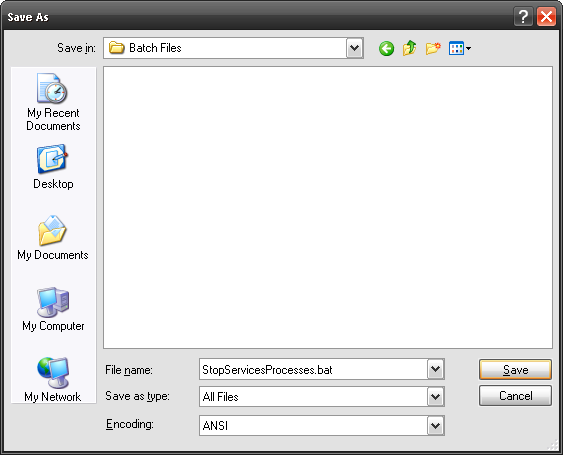
TSKILL kills the task of course. You don’t need to use the Image Name, you can also use the Process ID as it is shown in Process Manager. As usual, the echo lines let us know when the stopping of the processes begins and ends. The PAUSE command results in a line asking us to hit any key to continue. It’s just a more concrete way of letting you know the batch file is done. To save this as a batch file that you can run by just double-clicking on it, we need to do a few things. Click on File > Save As in Notepad. Then when the Save As… window opens, name the file whatever you want. I chose StopServicesProcesses.bat. You need the .bat on the end. Now change the Save as type: box to All Files. Click Save.
Now you have a batch file! Double-click on it and enjoy your speed! You should see a command window open that will look something like this:
Oh, I did say something about restarting those services and process when you are done using your one intensive program, didn’t I? Well, that’s a story for another time. Image credit: Davichi Related posts
| ||
| Set Up A Voicemail System For Your Blog With VoiceMeMe Posted: 16 Nov 2009 12:00 PM PST
How to Set Up a Voicemail Feature For Your BlogVoiceMeMe provides you with an innovative approach to interacting with your website visitors. I’m always looking for new ways to provide a way for my blog visitors to interact with me, similar to the LiveZilla online tech support system I recently wrote about. While the LiveZilla tech support system was great for my writing and online SEO blog, for my other blog about alleged top secret government programs, I need an easy tool that allows visitors to click through and leave me a message in a way that’s both convenient and completely anonymous for the visitor. With VoiceMeMe, you can provide such a tool to your blog visitors, where they can simply click on the tool to retrieve a phone number and a pin number that’s customized specifically for their message. They call the number from any phone, enter the pin, leave their message and you are immediately alerted to the voicemail, which you can chose to listen to from the VoiceMeMe website or download the file directly to your computer. To set up the voicemail widget, just visit the widget page on Widgetbox.
The widget is actually pretty well designed and would look good on any blog. However, if you don’t like how it looks, you can configure it in the settings box to the right on the same page.
The most important field to set up a voicemail account properly is the email field. Make sure to type in the email address where you want your voicemail notifications to go. You can also set up the message that initially appears in the widget on your blog, and the final message that the user sees after they’ve left their message.
Once you click “Get Widget,” you’re provided with the embed code. You can choose from Javascript, Flash or MySpace code. If you’re unsure what you need to use, scroll through the specific applications at the bottom – if your blog is in Blogger or Wordpress, click on those icons and you’ll get the embed code that will work for you, or Widgetbox may insert it for you once you enter your credentials. In my case, I just copy and paste it into my Wordpress widget for my TopSecretWriters blog, and this is how the widget appears in the sidebar on my blog.
Whenever a visitor comes to my blog, and if that visitor is possibly some insider with secret knowledge about how much the government really knows about aliens, they could anonymously share that information with me by clicking on the “Next” button inside the widget. When they do so, the widget produces a one-time pin number and then provides the visitor with the number they can call to leave me a message.
This is a one time pin, and the caller can call from any phone that they like, meaning that when the Men In Black come knocking on doors, there’s no trace left and no one to point any fingers at. This widget allows your blog visitors to feel like they’re having a much more interactive experience with your blog because they can take part. Being able to contact a blog owner directly like this is not always easy on many blogs, so by offering this feature you’re providing a very unique service for your loyal visitors. The coolest thing about this widget is that it actually updates while the call is in progress. When the caller dials the number and is leaving you a message, the widget displays the following on their computer screen.
This assures the caller that they really are leaving a message for the blog that they visited and that the blog owner (you) will receive the message. Once they hang up the phone, the widget updates with the customized message you defined when you set it up.
Save the embed code that you created, because you can use this service on Facebook, in your HTML-based emails, and even on forum posts or on your various online profiles. Wherever you want to offer website visitors an opportunity to leave you a voice message instantly, you can embed this widget.
When I tested the service through my own blog, it was instantaneous, and I love the fact that you can download and save the voicemail message on your local hard drive if you like. The service takes less than five minutes to set up through WidgetBox, it requires no sign up or registration, and of course it’s absolutely free. Just one more very cool way to set up a voicemail feature on your website or blog that your visitors will love. Would you consider setting up a voicemail widget on your blog? Can you think of any other cool uses for this voicemail widget? Share your insight in the comments section below.
| ||
| 3 Inspiring Virtual Libraries for Avid Readers & Book Lovers Posted: 16 Nov 2009 11:00 AM PST
The best part about each of these sites is they provide you a way to create virtual libraries, sharing with others what you have read, what you're presently reading, and what you would like to read. Best of all, all these sites have free sign-up options with mostly unobtrusive advertising. LibraryThing
The member libraries can be viewed not only by titles but also by book covers, which is the best way to browse. The site includes a large assortment of literary groups and discussion threads, such as Science Fiction Fans, Young Adult Lit, Historical Fiction, and "Books that made me think."
Adding books to your library page is as simple as typing in a book's title, ISBN or name of the author. When you select a book to add, all the pertinent information about the book is included for you. If you're a serious about maintaining your virtual library, you'll want to keyword or tag your books so they can be grouped together by genre, year or month read, and any identity you want to give them. You can also rate, review, and make recommendations to other members. A free membership to the site allows you to catalogue 200 books for free, but the best option is to pay $25 for a lifetime membership. Shelfari
You build your virtual library the same way you do on LibraryThing. You can search for and add books, and you can go through the collections of other members and build off their list. It has a Facebook style to it whereby you can connect with your friends to see what books they're reading. You can also rate, tag, and write reviews about books. Your home virtual library pages keep you abreast of what your friends are reading and the threaded discussions of groups you're a member of.
Membership is totally free on Shelfari and the advertising is pretty unobtrusive. Goodreads
There's not much unique to Goodreads, but of the three literary sites I would say this one the most minimalist in design and approach. The site, unlike the other two, allows you to share your reviews on your FB page.
If you're a literary writer, there's also a place to share your own poems, short stories, and essays. This section can also be used to post photos of your home library collection. Finally, Goodreads’s other features include a section of videos uploaded to author's profiles, a way to swap books, and a searchable section for upcoming local to international book and writing related events. Goodreads membership is free and ad-based. I'm a member of all three of these sites with virtual libraries, but I can't honestly recommend one over the other. To get the most out of any one of them simply means being active on a regular basis, building your friends list and participating in useful discussions. If you're a member of one of these sites, let me know what your experience has been as an active member. Has it made a difference in your reading habits? Image credit: Let Ideas Compete Did you like the post? Please do share your thoughts in the comments section! New on MakeUseOf ? Get cheat sheets and cool PDF guides @ www.makeuseof.com/makeuseof-downloads/ Related posts
| ||
| 3 Free Cross-Platform Multishooter Games That Resemble Worms 2 Posted: 16 Nov 2009 10:00 AM PST
Driven by nostalgia, I went on a search to look for Worms-like games for Mac on the Internet. It sure took me a while but I did find three clones of the game I used to love. In my article “16 Free, Fun, Simple & Addictive Games to Take the Edge Off“, I touched on Wormux – but since then, there have been quite a few updates so I’ll tell you all about it again. If you don’t know what Worms is, it’s a turn-based 2D shooting game. Each team comprises of several players and everyone takes turns to select their weapon of choice to eliminate the opposing team. For more information on the Worms lineup, visit the developer’s webpage. So, here are the three Worms clones that I found and they’re all cross-platform! WormuxThe latest version of Wormux was released in September 2009 and to be quite honest, I found it to be probably the most refined Worms clone available. Instead of earthworms, the characters in the game have been replaced by avatars of popular free apps like GIMP, Pidgin and a few other random cartoon characters.
The selection of weapons is slightly modified from the original and tweaked to be different but the general gameplay feels about the same. The game is still turn-based, no changes there. Network gameplay through LAN is an option, and so is playing online via the Wormux server. However, the server isn’t accessible if you connect via a proxy or if you don’t have the port 3826 forwarded to your computer. HedgewarsI’m actually very surprised at how much this clone resembles Worms 2. The map design, weapons selection, voiceovers, as well as the overall feel of the game is uncannily similar to the original game, it’s hard to believe until you actually play it. The only real noticeable change is in the characters.
In Hedgewars, you play a pink hedgehog dressed up in all sorts of different costumes. It may look weird, but once you’re over it, you’ll be absorbed by the game itself. If I am allowed one complaint, it’ll be about playing online. They didn’t really put much effort (I think) into designing the GUI and as a result, searching for an available game online is such a pain. But as I mentioned earlier, once you’re in a game and start to play, you’ll be totally immersed and eventually forget about its shortcomings entirely. By comparison, Hedgewars isn’t as refined as Wormux. However, it does offer more original “Worms” gameplay. TeeworldsI have to state for the record that Teeworlds is a little different from the original Worms game in the sense that it’s not turn-based — it’s real time. This means that instead of one player controlling a character at any given time, everyone is allowed to play at the very same time! It’s chaos!
The motif is still the same — eliminate the opposing team. However, the gameplay and weapons are modified. There are three types of game modes: Deathmatch, Team Deathmatch and Capture The Flag. It takes a little getting used to because again, gameplay isn’t classic Worms but to be brutally honest, I have to say that I prefer Teeworlds when I’m feeling like a bit of fast-paced action — I don’t have to wait my turn, I respawn after being shot dead, and I just play until the timer runs out or a team wins. Then the game starts again. Worms purist may not enjoy it though. But who cares? These games are just for fun. Wormux – Download I hope that you find these games entertaining and a bit of fun on a dull, autumn evening. Are you a Worms fan? Which clone did you enjoy the most? Share your thoughts in the comments. Did you like the post? Please do share your thoughts in the comments section! New on MakeUseOf ? Get cheat sheets and cool PDF guides @ www.makeuseof.com/makeuseof-downloads/ Related posts
| ||
| Find What Happens To Your Email and Social Networking Accounts When You Die? Posted: 16 Nov 2009 08:30 AM PST
Almost every website will have a different policy for dead account holders, so I will discuss what popular websites such as Gmail, Hotmail and Yahoo email accounts, MySpace and Facebook social networking websites do in the event of a death of one of their users. GmailIf you have a Gmail account and you pass away, your next of kin will be allowed to access your emails. The account will stay open forever, but as the next of kin, you are able to request it to be deleted. To get access to the email account, you will need to supply the following information by fax or mail to Google to be granted account access of the deceased user account.
After you’ve compiled the information, Google will verify it and grant you access to the user account. More information about accessing a deceased person's mail can be found in Google’s Support Page. So if you have private information that you don’t want people to look at when you are dead, don’t use Gmail (use Yahoo instead). If you are trying to access a deceased person’s email account, you may first want to try to reset the user’s password. HotmailIf Hotmail accounts are left inactive for a period of time, the email account along with all the information will be eventually deleted (within the year) and therefore, you will not be able to access it. If you die, your next of kin will be granted access to your account provided they supply supporting documents such as a death certificate (similar to what Google needs). Hotmail will not reset the password for the deceased person, but you have to fax or mail information to gain access to the account such as:
If you require more information, you can get it at Windows Live Help. YahooYahoo has a much stricter policy over who can get access to your account. And that is no one. If you want to ensure no one has access to your emails when you die, you would want to choose Yahoo. Yahoo will not grant permission to anyone to access a deceased user’s account. The only permission Yahoo grants is for the account to be deleted. Therefore, Yahoo does not allow anyone to access your emails. The only way someone can do this is if they reset your account password. Facebook will not grant anyone access to a deceased user account, but if the user of the account is deceased, their page will be turned into a memorial page once reqested. By filling out the form to turn an deceased users page into a memorial page, Facebook will remove sensitive information on the account like status updates and will only allow current friends to access the page. Family members will then be allowed to customise the page of the deceased user.
MySpaceMySpace deceased user policy is a bit vague, but they state that if you are the next of kin, they will not grant you access to edit, or delete any of the content or settings on the account yourself, but you can request it to be removed if you deem appropriate. You can simply email accountcare@support.myspace.com and attach appropriate documentation such as a death certificate. However, if you have access to their email account, MySpace recommends that you reset the user password.
In the end…If you die, your accounts will most likely stay active unless the site automatically deletes the account due to inactivity, or your family has requested the account to be closed. Most sites allow access to your personal data by your next of kin, but to gain this right, they will need to mail proof to the website. Even though you may have died, if you use one password for all these sites, your family members might be able to use that password, or even guess your secret question. But then again, when you die, would you even care what people find in your email inbox or social networking sites? If you are trying to access a deceased person's email, try resetting their email, look to see if they have stored the password in a file, or see if they have written it down on paper. Have you ever gone through something like this? What did you do to secure the deceased user account? Your experience could help easy the transition for others. Share them in the comments. Did you like the post? Please do share your thoughts in the comments section! New on MakeUseOf ? Get cheat sheets and cool PDF guides @ www.makeuseof.com/makeuseof-downloads/ Related posts
| ||
| Top 3 Sites To Help You Become A Linux Command Line Master Posted: 16 Nov 2009 07:30 AM PST
They may think it’s too difficult or too much to remember. But once a user becomes accustomed to using the command line interface, it soon becomes the preferred method in many tasks. Not only is it much quicker to accomplish just about any given task at the command line, it opens a whole new world of possibilities. It allows the user to begin to understand how an operating system is structured and functions. It gives the user very powerful tools to do the things graphical interfaces will never be able to reproduce. And best of all, it’s just fun. There are several shells, the interface between the user and the system, with their own set of built-in functions and commands. The most popular is probably Bash, which is an improved clone of the Unix Borne Shell. Not only does Bash include lots of handy built-in commands, but a user can execute (or fork) a multitude of other application executables from within it. There is a short list of commands that one can learn to get started. With this short list, you can begin to build your toolbox and with the help of a few good reference sites, become a command line master yourself. Not only will this enable you to feel comfortable running just about any Linux distribution available, but every programmer working today began with that first command.
LinuxCommandOne of the best places to get started is LinuxCommand. This site gently introduces the first time user what a shell is and how to use it. Then, if desired, it will instruct the user on how to write their first shell scripts. The homepage of this site is very relaxing. It merely shows an image of a terminal and reassures the user “Don’t worry, we’ll show you what to do.” Its Table of Contents addresses usage in an task oriented manner. Instead of listing the command and explaining what it does, it lists an operation one might want to perform. For example, the first thing any user might want to learn is navigation. With a reference to the graphical hierarchy, it begins the user with the first babysteps of moving around their system with the command line.
Then one is taken on a tour of the Linux filesystem hierarchy and shown how to manipulate files such as renaming, moving, or deleting, and permissions. Once you learn this beginning information, you are already on your way to fixing a Linux system on which the Graphical User Interface is broken. Next the site gets more involved walking the user through writing shell scripts, first easy then more and more complicated. If you finish this latter section, you are already almost a master. O’Reilly’s Linux Command DirectoryO’Reilly’s Linux Command Directory is a wonderful quick reference chart-like guide. This page lists not only the built-in commands, but also many little utilities commonly included in all Linux distributions. This is great for the beginner or even more advanced users as the listed commands are links to full information as to what the command is and how to use it. While this information may be available right on your system as Main pages, it comes in handy for those who forgot the command or perhaps doesn’t know which to use. For example, you’d like the current system date and time, so you visit this page and see the command By clicking it you’ll find all sorts of ways it can be manipulated to output just what you need. A favorite activity is just reading through the list for unfamiliar or forgotten commands and learning what they do. This is just a particularly handy site to bookmark.
The Linux CookbookThe Linux Cookbook fits in somewhere between LinuxCommand’s Learning the Shell and Writing Shell Scripts. It takes the user from logging in to as deep as they want to go. However, its best resource is its intermediate instruction. After learning a few commands one might want to know how to edit a file and the cookbook features introductions to common text editors. It also tells a user things such as how to change their password, listing directories in color, and how to understand help files and documentation.
Later, it instructs on how to configure the X Windows System, how to start X, and all other aspects of using X. Then it even goes further into using the graphical interface and includes things like audio, printing, networking, and communications. It basically gives the user a full overview of using Linux. This site is the online version of a hard copy book sold in many stores and featured on Amazon. Once you complete this book and the LinuxCommand.org instruction, you’ll be a Linux Kung Fu Master. Do you have any favourite websites for mastering the Linux command line? If so, let us know about them in the comments. Image Credit : Slashcrisis Did you like the post? Please do share your thoughts in the comments section! New on MakeUseOf ? Get cheat sheets and cool PDF guides @ www.makeuseof.com/makeuseof-downloads/ Related posts
| ||
| 5 Simple Ways To Lighten Dark Underexposed Photos In Photoshop Posted: 16 Nov 2009 06:00 AM PST
There are many ways you can lighten dark photos in Photoshop. In fact, there are usually many ways to achieve a particular results when working with Photoshop. The one you eventually choose, would depend on the photo and your level of expertise in Photoshop. It involves a bit of trial and error and some experimentation. Here are some techniques that I use often when brightening a dark photograph. As an example this is the image we will be working with. Our objective is to lighten the background and bring back some details in the foreground as well.
Ready? Let’s get started. Brightness and ContrastThe name says it all. To use brightness and contrast:
New users would be tempted to use brightness slider to lighten their dark photographs. While it is easy to use, it only does what I would call a fairly good job of lightening your photos. Any time you are find yourself pushing the brightness slider too far, you are better off using any of the other mentioned ways or else it would be evident that you brightened your photo in post processing.
LevelsComplexity moves up a notch when you use Levels for this kind of work. You can summon the levels dialog box by going to Image > Adjustments > Levels or hitting (Ctrl/Cmd + L). Immediately, you are greeted by a histogram. Histograms in image processing and digital cameras let you know how many pixels or each brightness value are distributed in your image. Having graph lean towards towards the black slider means your photo is predominantly dark; if the graph leans towards the white marker, that means your photo is predominantly bright. (Things get a little more complex when we move into individual color channels, so you can leave that part out for the moment!) You can use Levels to lighten photographs as follows:
Tip: Hold down the Alt Key while dragging and Photoshop will show you the overexposed areas in the photo. You want to keep this area to a minimum! CurvesCurves gives you the greatest control when doing a job like this. It is just a bit complicated and not as intuitive as the brightness/contrast sliders, but it also gives you finer control. I would suggest using one of the presets when working with curves for the first time. There is even a preset to lighten your photos. Go ahead and try it out:
Some Pro TricksWhile those are the conventional ways you would lighten a dark photograph, there would be tens of other ways to achieve the same inside Photoshop. As you play around, you will discover new tricks of your own. Here are some I find useful in similar situations: Screen Blend Mode
Soft Light Blend Mode
So there you go, five ways to lighten your dark photographs and actually, there are more. However, you are pretty much covered with these five. If you have any other creative way to achieve similar results, we would love to know about them. Let us know via comments! Did you like the post? Please do share your thoughts in the comments section! New on Twitter ? Now you can follow MakeUseOf on Twitter too. Related posts
|
 So you got yourself a fancy smancy DVD drive. It could be a burner or just a reader and it is just not working. How do you figure out what is wrong with it?


 Now that I have your attention, I can tell you that there are a few things that you have to do first, before you can learn how to speed up your computer with that one double-click. When those things are done, though, it will always be a simple double click to speed up your computer. How can this be possible?
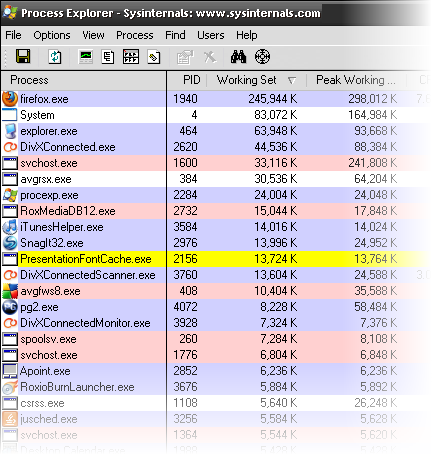 Look at the Working Set and Peak Working Set columns. That shows how many kilobytes of your RAM are being used by the program right now, and what the peak amount used at one time was. As you can see, my Firefox is using roughly 245 MB of RAM. That’s about one-quarter of the RAM in my computer.
 What this shows us is which excess things are Processes and which are Services. This is important, because what we do next requires us to know the difference. Those things that are under the Services branch are services. Typically the processes will be shown further down.

 Feel the speed!
 For a little while, free voicemail systems were very common online. You could sign up for any number of services where callers could leave you a voicemail message, and you could retrieve those messages online. Over time, most of the voicemail services started charging or wrapping up the voicemail feature into a larger VoIP package. If you look hard enough, you can still find some pretty cool free voicemail applications, such as


 If you're an avid reader of books like I am (though I don't read nearly as many books as I used to, thanks to the Internet), there are a handful of useful social networking sites where readers can share and discuss what they reading.
 Perhaps the site that set the tone for book sharing and virtual libraries is LibraryThing. Touted as the "world's largest book club," it has well over 900,000 members and over 45 million books cataloged. LibraryThing allows you to use a tagging system to your organize your books. Previewing its
 Shelfari is a lot like LibraryThing but a bit more commercially designed, with a slightly easier to use interface. It also claims to be the largest social networking site for readers.
 The newest literary social site on the block is
 When I was still using a PC, Worms 2 was one of my favourite games. I was never an avid gamer nor did I have the world’s longest attention span. I’m not really the sort of person you’d expect to be glued by a mission-based game with a long and twisted storyline. I’m more of a “wham, bam, thank you ma’am” sort of gamer.


 Have you ever wondered what happens to your email accounts and social networking sites such as

 The truth about Linux today is that one may never have to actually touch a terminal or issue a single Linux command in order to run some versions of this flexible alternative operating system. While there are times when using the Linux


 We all have shot dark underexposed photos at one time or another. Blame it on the lighting or the flash, such photos are common. Luckily, Photoshop provides you with amazing abilities when correcting photos like these.


| You are subscribed to email updates from MakeUseOf.com To stop receiving these emails, you may unsubscribe now. | Email delivery powered by Google |
| Google Inc., 20 West Kinzie, Chicago IL USA 60610 | |

No comments:
Post a Comment